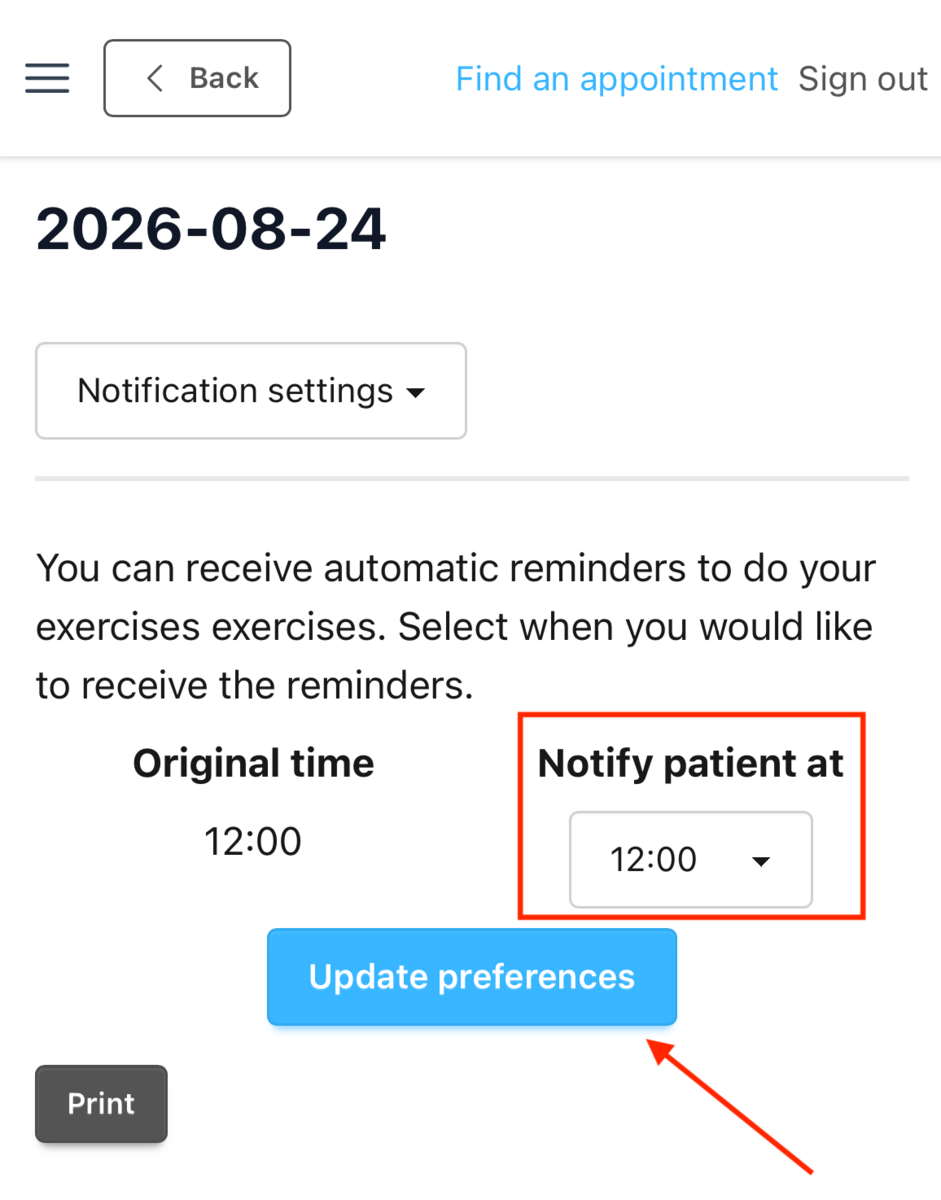
Changing exercise notification times
Why reminder timing matters
Non-adherence to home exercise programs is well documented across musculoskeletal rehabilitation, and forgetting is consistently one of the most commonly reported barriers. A reminder that lands at a time the patient can realistically act on removes that barrier without adding to your caseload.
Setting reminder times gives you:
- Prompts that align with the patient’s day: before work, on a lunch break, or in the evening, rather than at an arbitrary default hour.
- A reminder cadence that matches the prescription, since the number of daily reminders follows the frequency you set on each exercise.
- Better quality adherence data, because completions are more likely to be logged close to when the exercise was performed.
- Fewer between-session messages, as patients can adjust their own reminder times without contacting you.
- A simple, concrete self-management conversation to have at the end of an initial assessment.
How exercise reminders work
Reminders are generated automatically from the program you prescribe. There is no separate reminder schedule to build. The daily frequency you set on each exercise determines how many reminders the patient receives that day. An exercise prescribed four times daily generates four reminders.
Reminders are delivered as push notifications on the patient’s device. They are not the same as the email notifications Embodia sends when a program is prescribed or updated.
Each active program has its own notification schedule. A patient with more than one active program selects the program they want to adjust before changing times.
Both you and the patient can change the times. The patient always retains control of the schedule on their own device.
Where reminders are delivered
Push reminders require the patient to be using an Embodia app rather than a browser session. There are two possible delivery routes:
- The Embodia mobile app: available for Android and iOS
- Your clinic-branded Progressive Web App (PWA): an installable, branded extension of the Embodia
Changing Notifications as a Practitioner
At the bottom of the patient's program, click More (#1 in the image below) > Manage reminder settings (#2 in the image below)

From here, you can choose what time the patient will receive automatic reminders from the Embodia App to do their exercises.

Changing Notifications as a Patient
Patients can change their own reminder times at any time. Share the steps below when a patient asks, or set expectations during the initial prescription so they know the schedule is theirs to adjust.
In the Embodia mobile app
- Open the Embodia app and select the menu icon (three horizontal lines).
- Select Settings.

- Select Notification settings.

- If more than one program is active, select the program to adjust.
- Set the preferred reminder time or times. The number of reminders per day reflects the frequency prescribed by the practitioner.
In a clinic-branded PWA
- Open your clinic's app and select the menu icon (three horizontal lines).
- Select My performance, and then the program to be adjusted
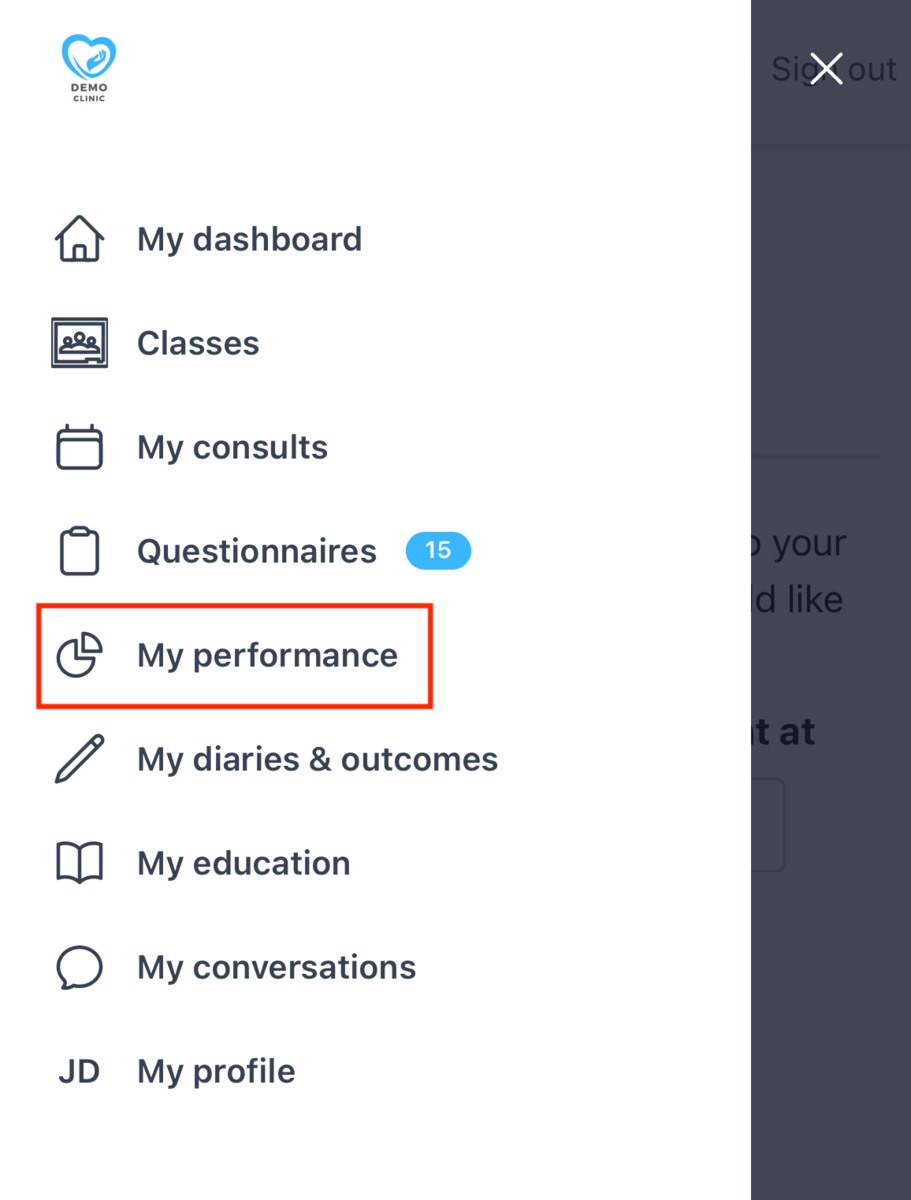
- Select the program you want to adjust.
- From the drop down menu select Notification settings
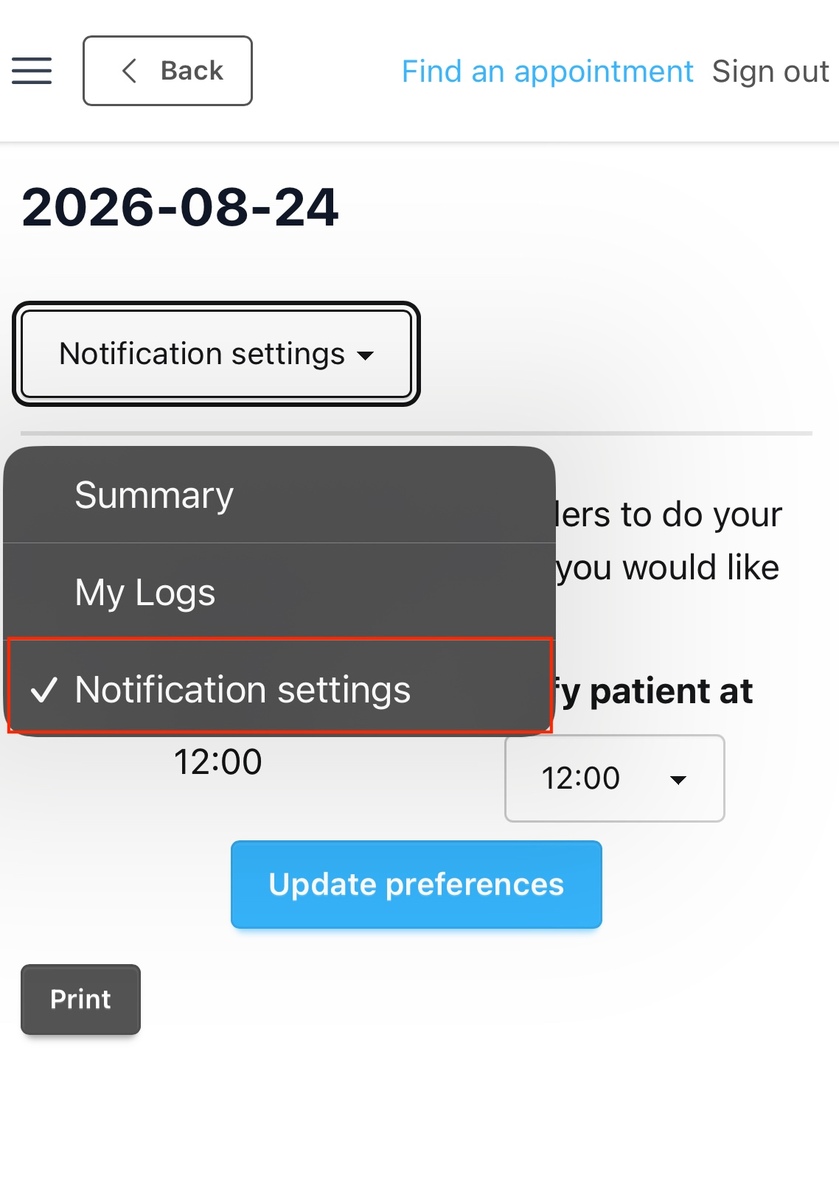
- Select the time you'd like to be notified and then click Update preferences