
Accepting card payments
You can accept card payments directly through Embodia. Embodia integrates with Stripe, an online payment processor. Setting up a Stripe account is free, and you can find the pricing on their website.
Note: Embodia does not take any processing fees from credit card payments made via Embodia's Practice Management System. The processing fees for credit card payments are taken by Stripe.
Connecting your Stripe account
To connect your Stripe account to Embodia, start by setting up a new payment method. Click on the payment method you want to connect. On the payment method page, click on Connect your Stripe account to this payment method:

This will redirect you to Stripe where you can sign in to your account and complete the connection process:

Accepting in-person card payments
If you have a Stripe Terminal, you can integrate it with Embodia to accept in-person payments.
Please note: we currently only support the BBPOS WisePOS E terminal reader with the server-driven integration from Stripe.
Once this feature has been enabled for your account, and once you've connected a payment method to Stripe (as outlined above), you can connect a BBPOS WisePOS E terminal reader to your Stripe account. To learn more about how to set up a terminal reader on Stripe, please follow the instructions outlined here and here.
Start by setting up a new payment method and connect it to Stripe. Then, from the payment method page on Embodia, click on the link in the terminal reader notice.

In the pop-up, select the terminal reader from the dropdown and then click on Connect terminal.
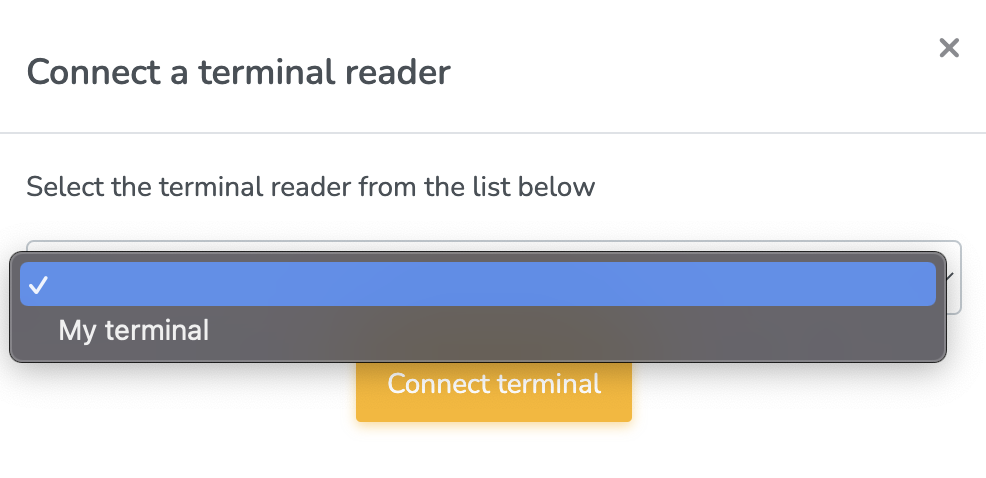
Your terminal is now connected. The next time you generate a patient invoice and select this payment method, Embodia will communicate with the terminal reader and charge the correct amount based on the amount entered on the invoice page.
Saving the card details from an in-person payment
By default, when a patient makes a card payment using the terminal, the card will not be saved to their cards on file. If you wish to store the card under the cards on file so you can use it later, you can override the default behaviour by clicking on the link in the banner.

It is important to note the following:
- It is important to get the patient's consent that you would like to store their card details for potential use at a later date.
- Not all card issuers allow saving the card details from an in-person payment. If the card issuer does not allow it, the card will not be saved to the cards on file.